
Open the group in @UCPRbot
Choose the Telegram group first. The JSON does not contain a group id, so the bot cannot apply settings to another chat.
This guide is for UC PR Bot. Describe how posting access should work. The assistant returns JSON. The bot shows a summary and changes nothing before Apply.
Choose the Telegram group first. The JSON does not contain a group id, so the bot cannot apply settings to another chat.
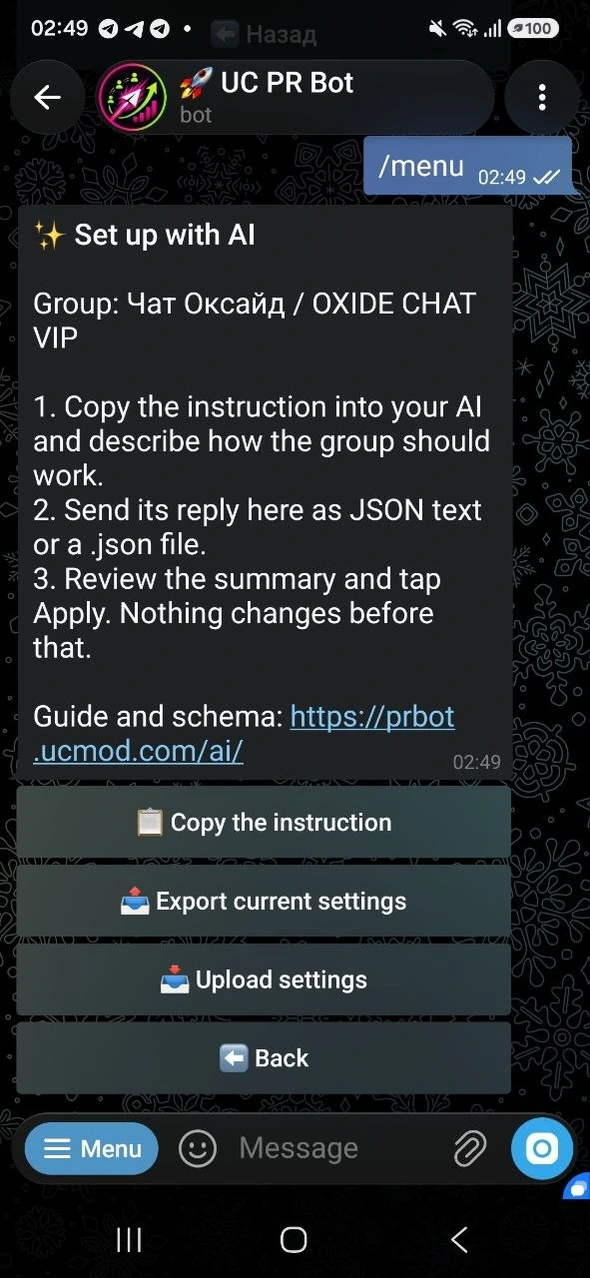
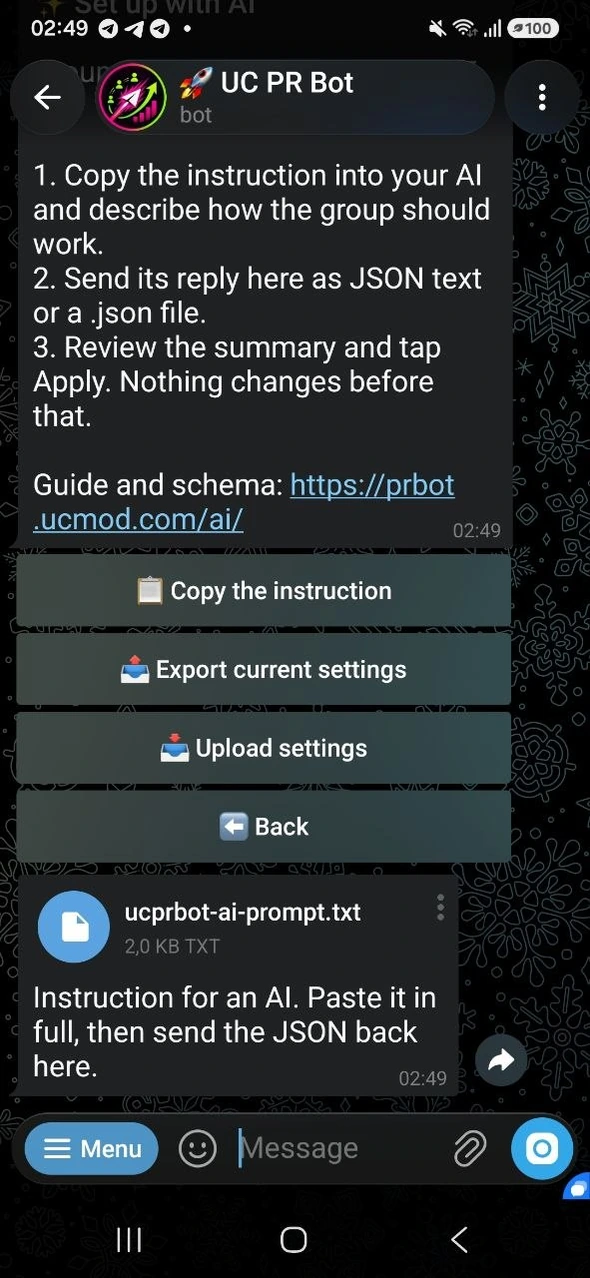
In the group menu tap Set up with AI, then Copy the instruction. The bot sends a file named ucprbot-ai-prompt.txt.
Attach the file or paste its contents into ChatGPT, Claude, Gemini, DeepSeek or another assistant that can return JSON. Then describe the group in ordinary words.
Screenshots show the English bot interface. The bot's full menu and all member notifications are also available in English.
The reply must be a JSON object with schema ucprbot.settings.v1. Send that text or a .json file. If the answer is too long for a Telegram message, send a file.
The bot shows what will change. Nothing is saved until you tap Apply. Unknown fields, extra code and settings for another group are rejected.
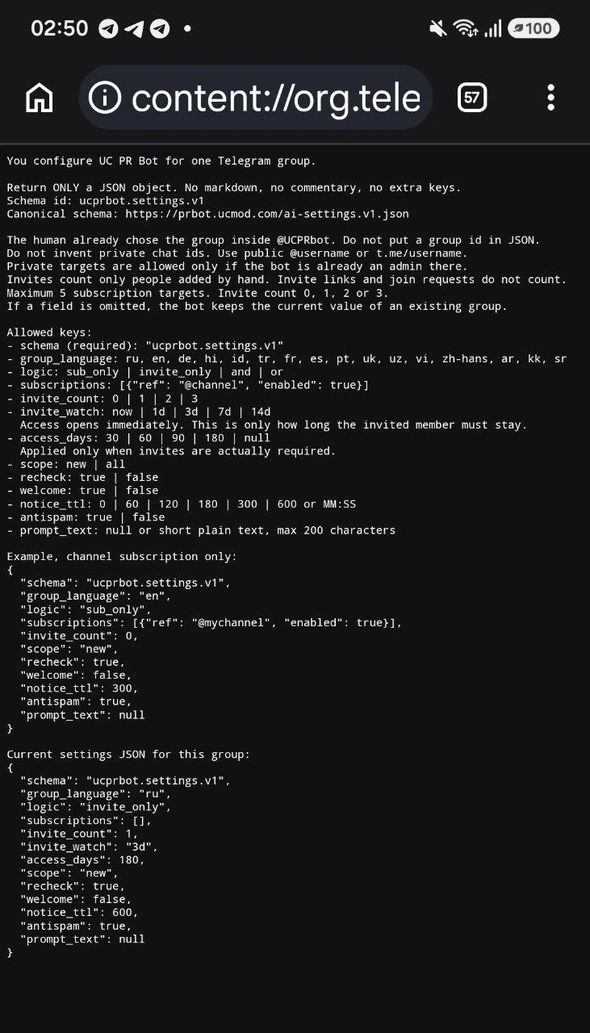
Any assistant that accepts a text instruction and can return JSON is enough. You do not give it the bot token or Telegram access. The bot still checks every field.
Require a subscription to @mychannel before posting. Keep anti-spam on. Do not require invites.
A member may post after adding one friend by hand. Watch that the invited person stays for 3 days. Joining by a link does not count.
Require the channel subscription and one invite. Show member notices in English and delete them after 5 minutes.
Machine-readable fields stay in English. If a field is omitted, an existing group keeps its current value. Open ai-settings.v1.json.
No. The instruction, JSON schema and Apply button belong to UC PR Bot.
No. The bot reads JSON text or a .json file. Describe the group to the AI, then send its JSON here.
Send a .json file. That is the safer path when the assistant returns a full settings object.
No. The preview is only a draft. Apply saves it. Cancel leaves the group unchanged.
Yes. Use the ordinary setup guide if you prefer taps over JSON.
Open @UCPRbot, copy the instruction, send the JSON back and tap Apply only after the summary looks right.